
3. Create publishing user credentials and locked-down IAM policy
We’ll use this account to publish Mojito JS containers from your IDE and/or CI pipeline. It’s a good practice to lock down the permissions on these users to the specific files/folders they need.
Before you continue - Haven’t got a Cloudfront distribution & S3 container setup? Check out the guide here.
Create an account in Amazon IAM
- Log in to Amazon IAM and go to the users section:
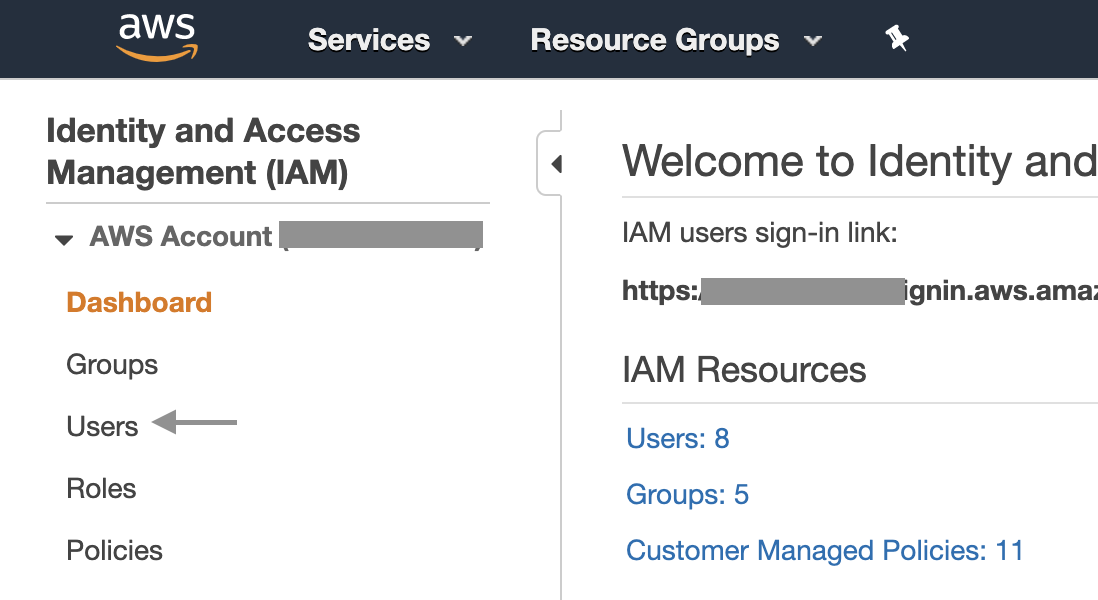
- Now hit the big blue
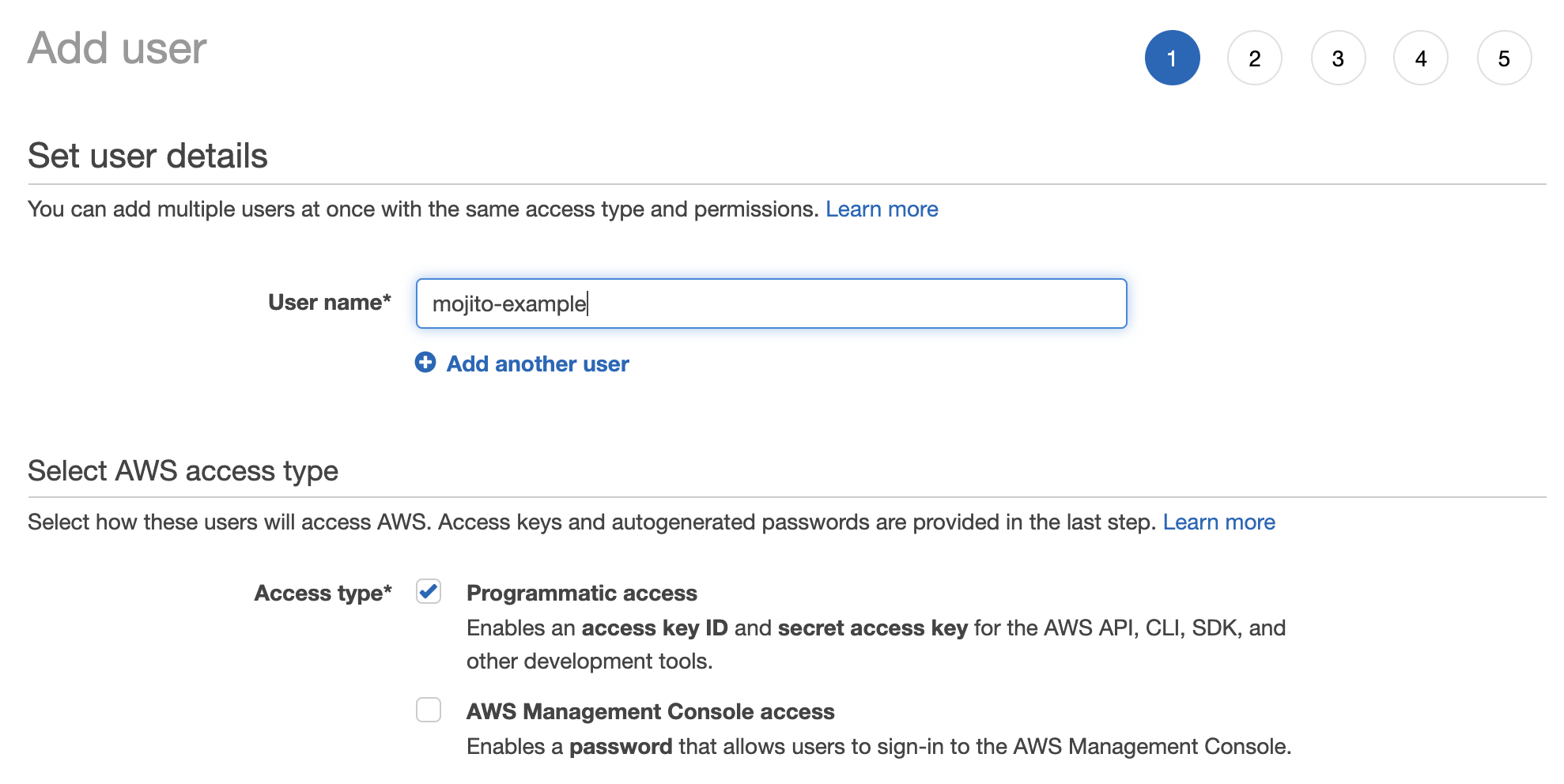
Create Userbutton to open the dialog to add a new user. Assign them a descriptive username and give themProgrammatic access:
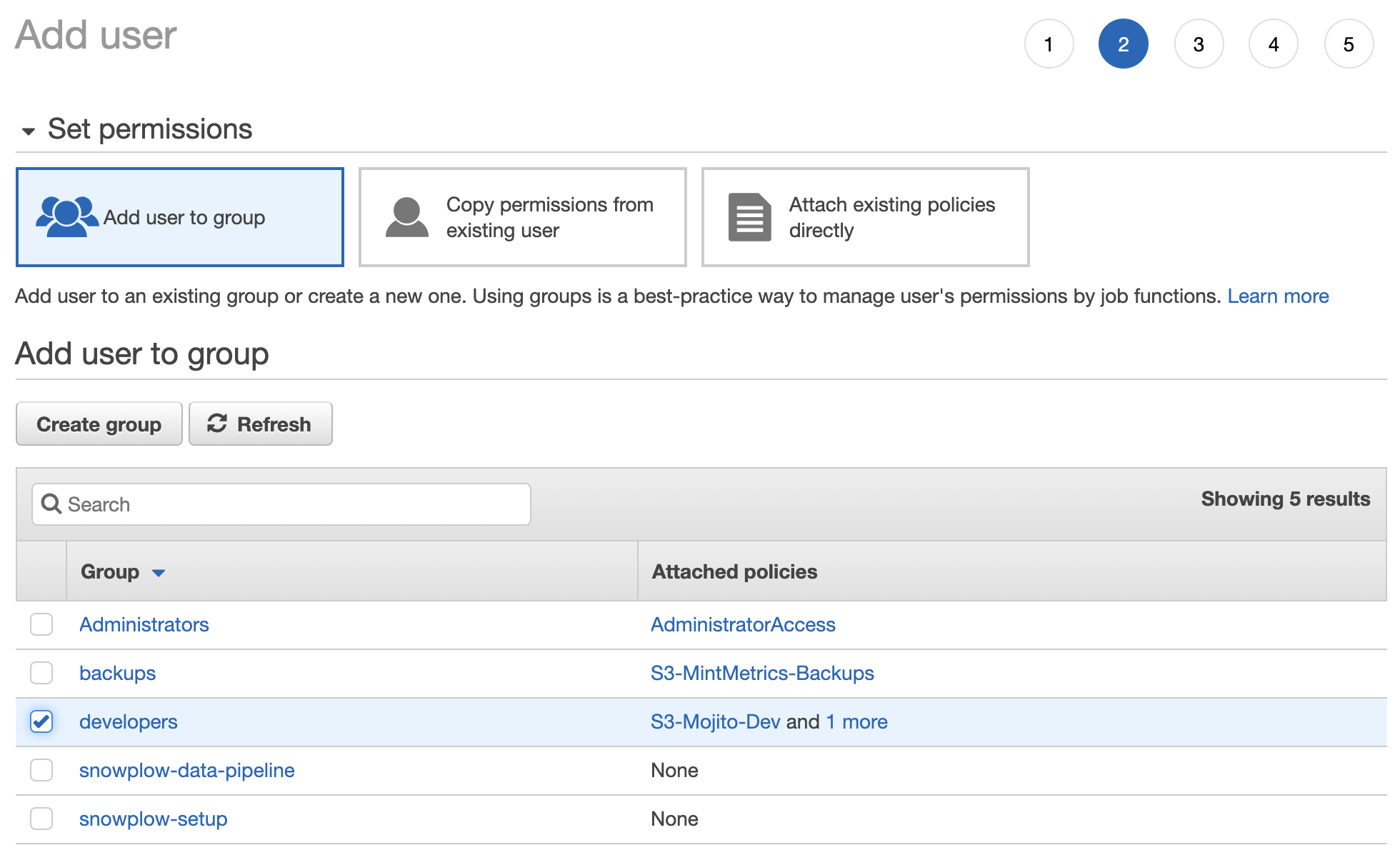
- Continue to the user’s permissions and assign them to a group with the appropriately locked down
Policy:
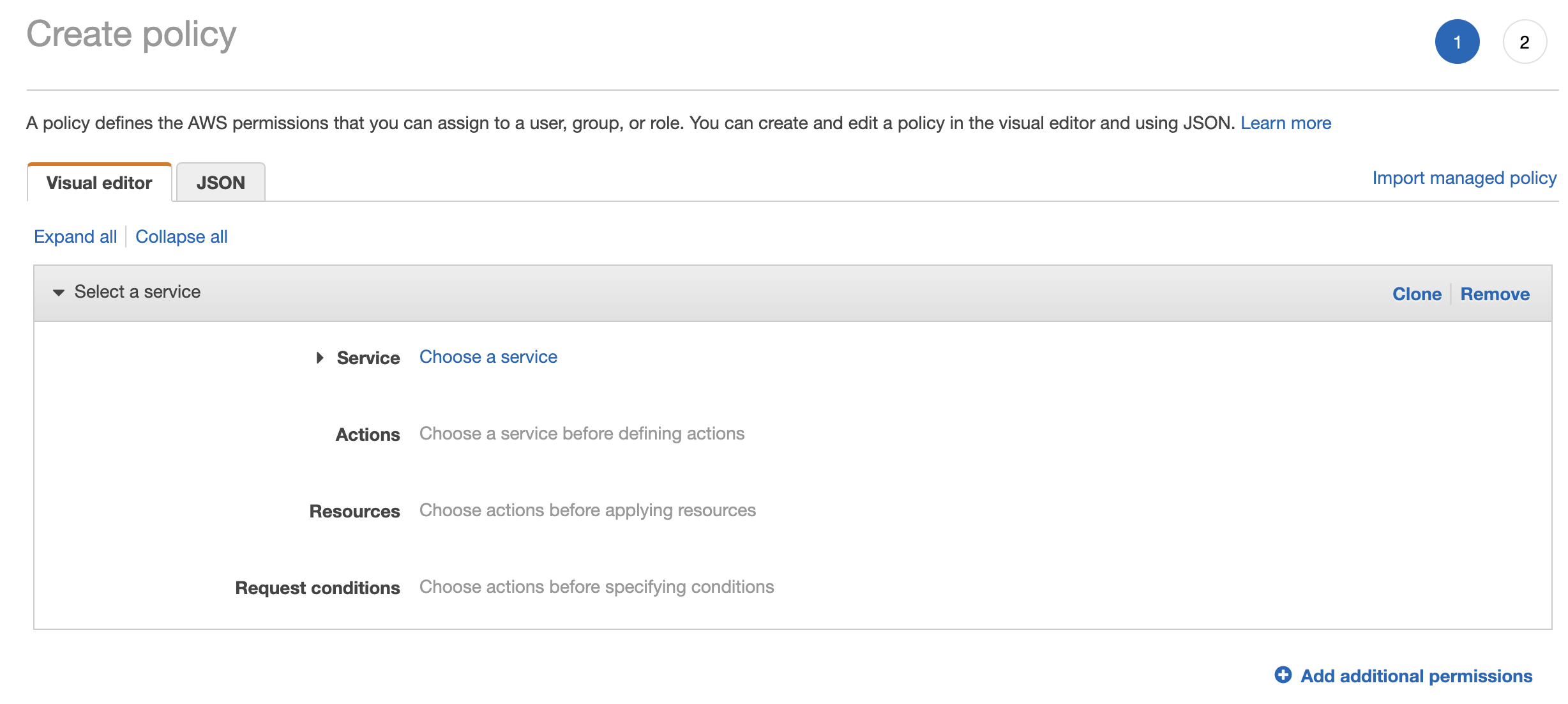
If you don’t have one yet, we suggest creating a policy through IAM’s visual editor.
We ensure users are locked down to the specific resources they require:
...
    "Resource": [
        "arn:aws:s3:::mojito-example/js/container-name.js",
        "arn:aws:s3:::mojito-example/jsdev/container-name*",
        "arn:aws:s3:::mojito-example"
    ]
...
This ensures access to your other S3 buckets and containers’ environments are locked down tightly. Meanwhile, wildcards come in handy for publishing container-name.pretty.js or setting up other blanket policies.
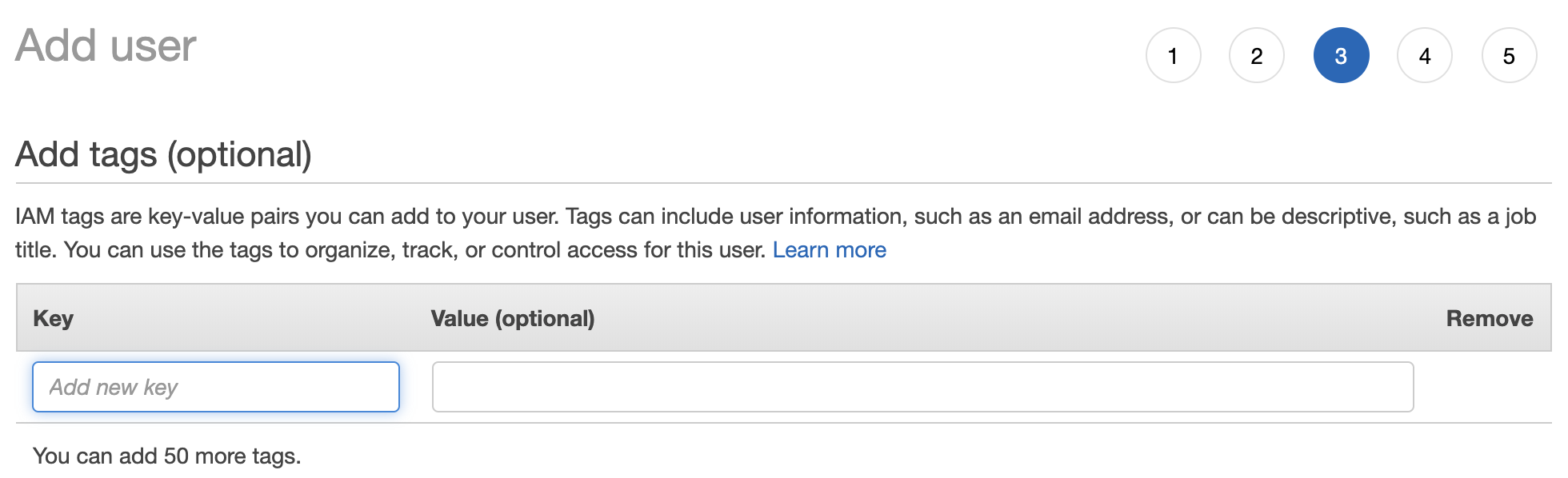
- (Optional) Add tags to the user if you need them, or skip to the next step
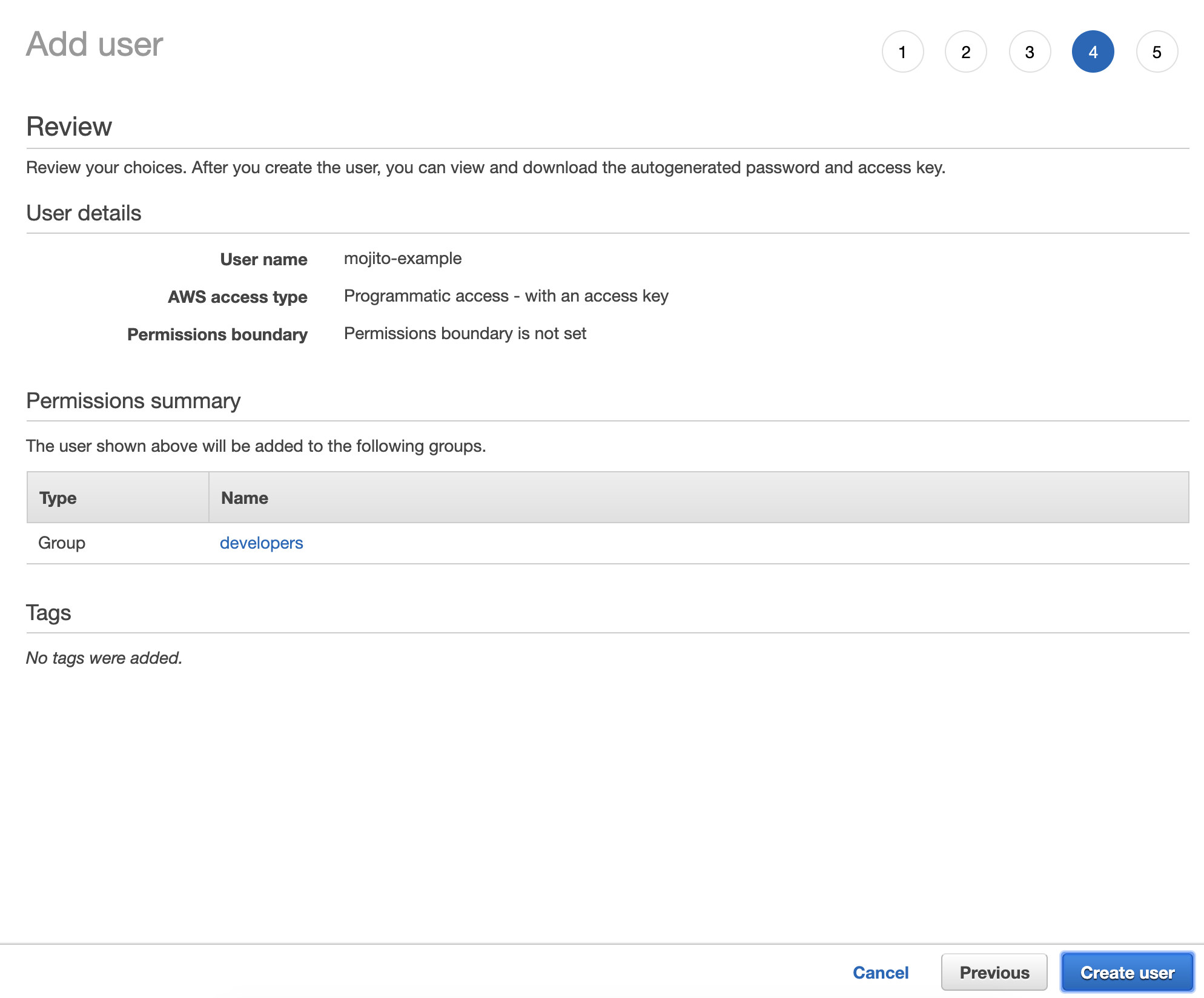
- Review the user’s settings and if all is OK, hit
Create user.
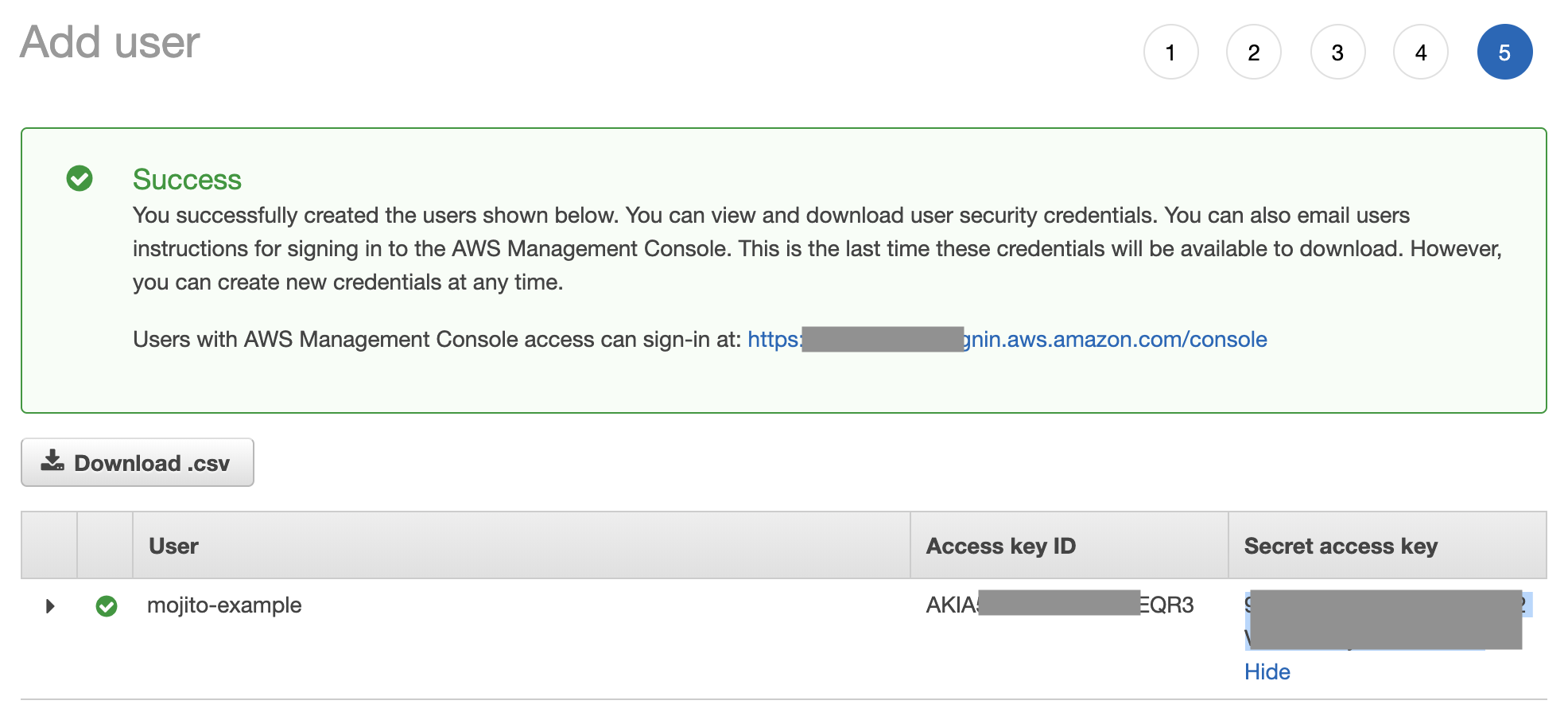
- Take note of the user’s Access Key ID and Secret - these are the credentials Mojito’s build script will use to publish to AWS from your IDE or Bitbucket Pipeline.
Install and set up the AWS CLI tool (to allow publishing via the CLI)
Follow Amazon’s AWS CLI installation & setup guide using the credentials you created in Step #1. We won’t cover this here.
Now you can publish straight from your IDE:
npm run deploy
And if your user has access to production, they can push to your configured production environment through the --production flag:
npm run build && npm run publish --production
Repeat this step for other users
We suggest adding the following users:
- Bitbucket production environments
- Bitbucket development environments
- Individual developers who need to publish to specific environments from their IDEs
For easy maintenance, use roles and groups that have your Mojito policies attached.
Next steps
Continue to set up Bitbucket Pipelines for Continuous Integration from a Web UI.
Or if you’re publishing via the CLI, you may want to install Mojito JS into your site.